

Installing WoodpeckerCI on your VPS server
Woodpecker CI installation guide: Docker deployment on a VPS, GitHub integration, Cloudflare security, and Slack build notifications.


To make this compatible with most projects and technologies, in this post we will stick to:
- GitHub – repository hosting provider, in terminology of CI systems called forge
- Woodpecker CI – CI system with a web dashboard which will run the build script (pipeline) for each of your projects. It must be hosted on some cheap Virtual Private Server (VPS), which we will call the build server.
- Cloudflare [Optional] - allows you to hide your CI server behind the secure CDN which protects it from various attacks
- Slack [Optional] – work messenger which we will use to see notifications about the build process (build started/build finished).
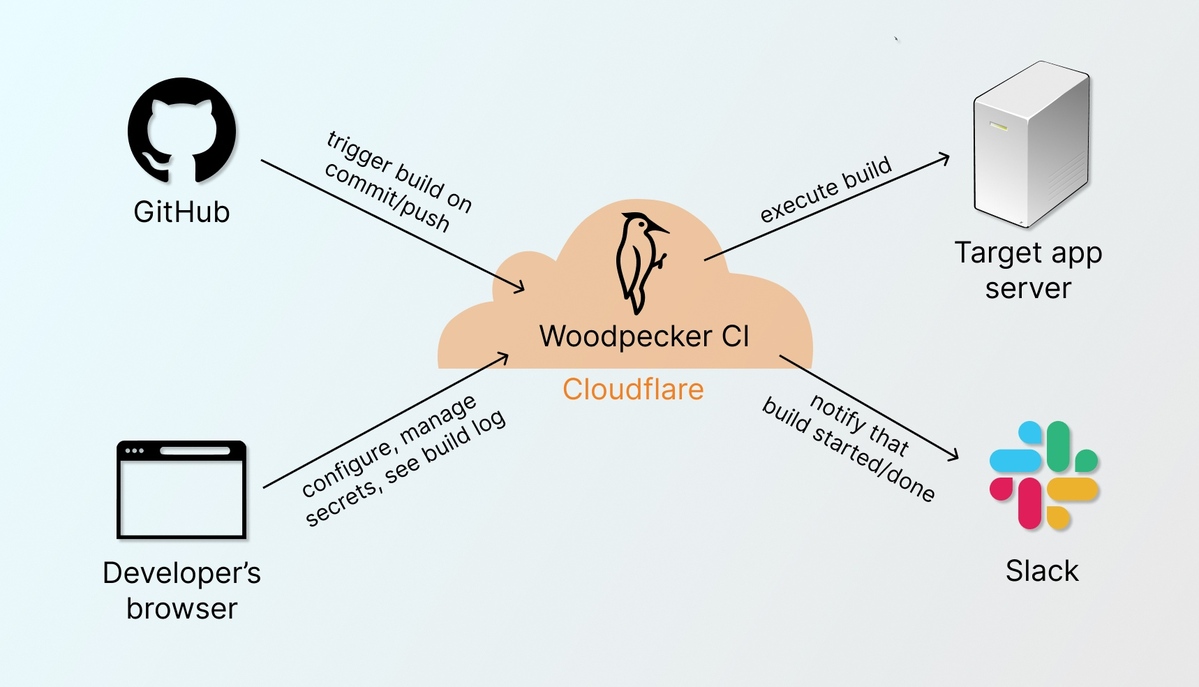
To host Woodpecker CI we need to get a VPS with SSH access and public IP.
To provision our build server we will use Docker, which allows a very quick setup of all required software and provides the ability in the future to recover a build server state with all software very quickly.
We will use the simplest Amazon EC2 t2.micro instance (1 GiB RAM). It is free for new AWS accounts for first year and affordable after the first year at ~10$/month (price may slightly vary depending on region). Instead of Amazon EC2, you can use any VPS hosting service.
-
Sign In/Sign Up into AWS console https://aws.amazon.com/. For better ping select an AWS region closer to you, e.g. we used Europe Frankfurt.
-
Go to Services → EC2 → Instances (find in the left menu). Click Launch Instance.
Select Ubuntu in Quick Start menu:
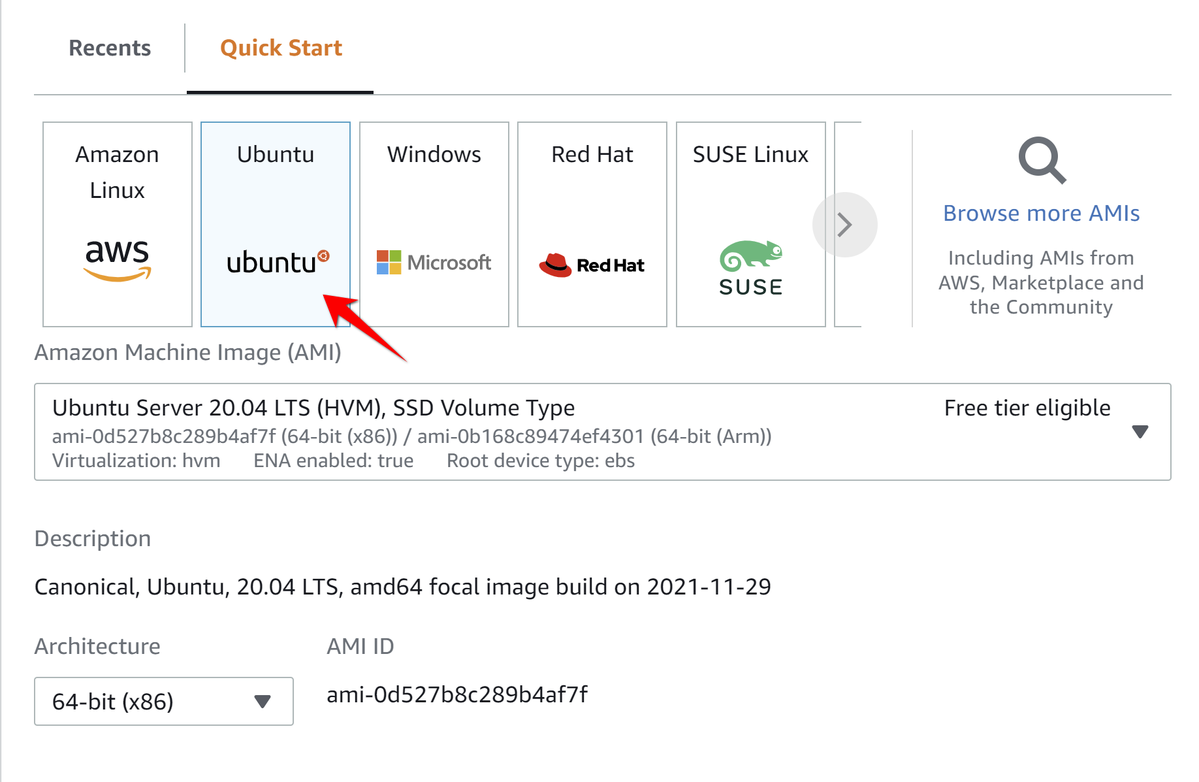
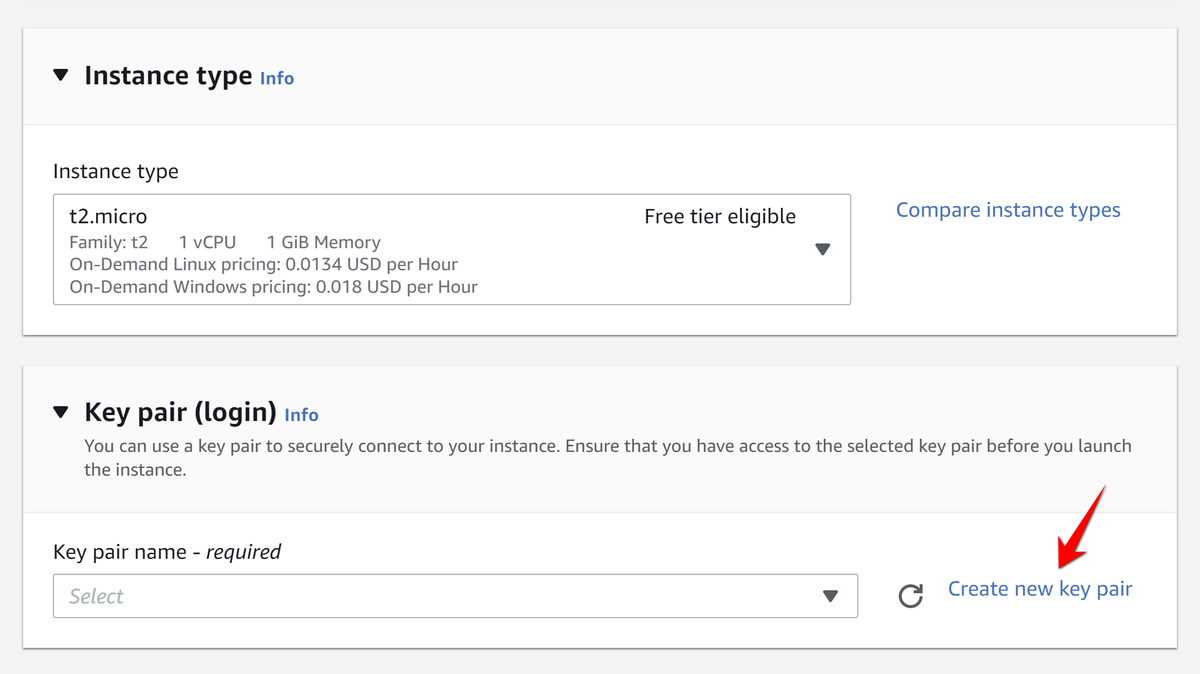
- On Instance type step select t2.micro. On Key Pair step select Create new key pair:
Enter Key Pair name and selectED25519 key pair type.
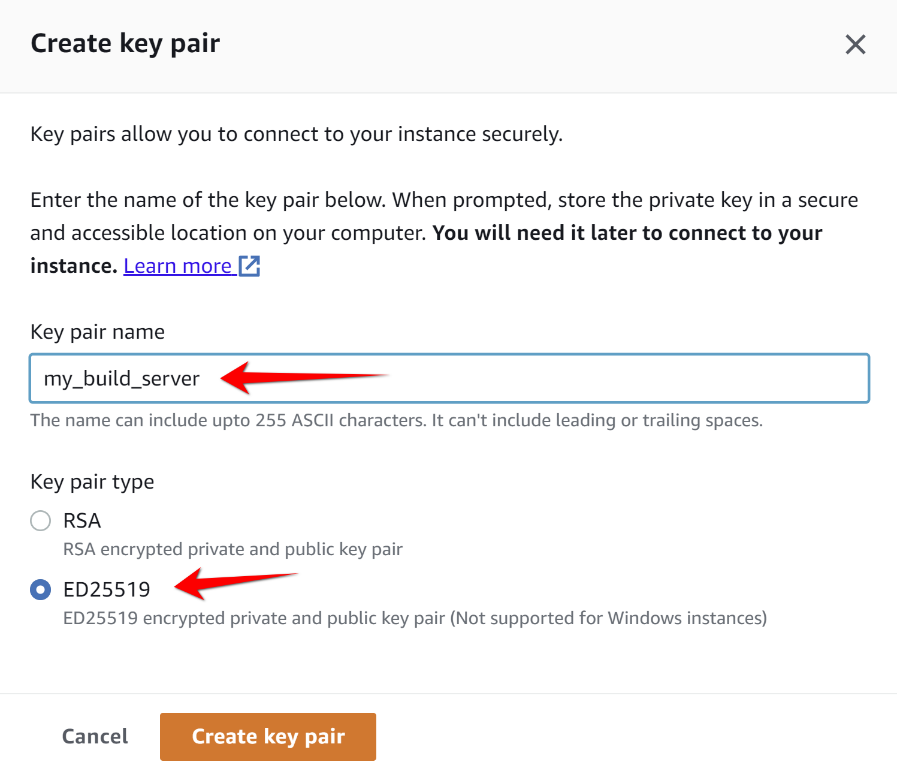
After clicking Create key pair button you should get .pem file which will be used later to connect to instance.
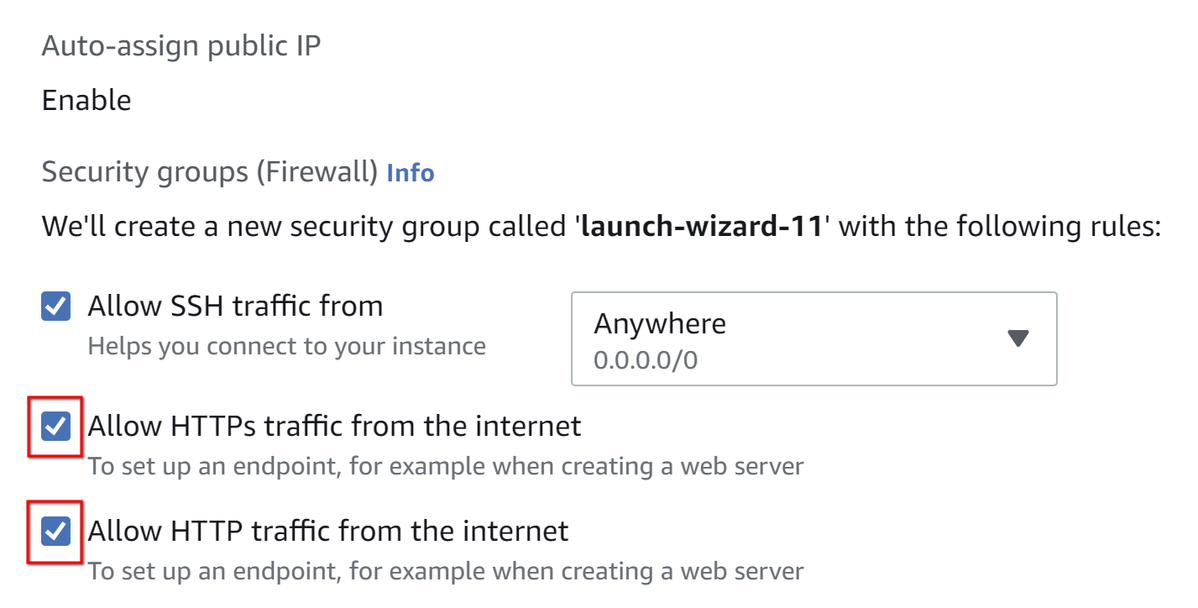
4. Tick options to open SSH, HTTP, HTTPs ports on your instance:
- Click Launch Instance.
6. Now we need to add fixed static IP address so it will be persisted in case if you will want manually rebut instance.
Go to Services → EC2 → Elastic IPs and click Allocate Elastic IP address and then Allocate.
-
Click on the checkbox on the left side of the IP item you've just created, and click on Actions → Associate Elastic IP address to associate the IP address to EC2 instance.
-
Choose an instance and its private IP and click Associate. Great! You have static IP mapped to your instance.
-
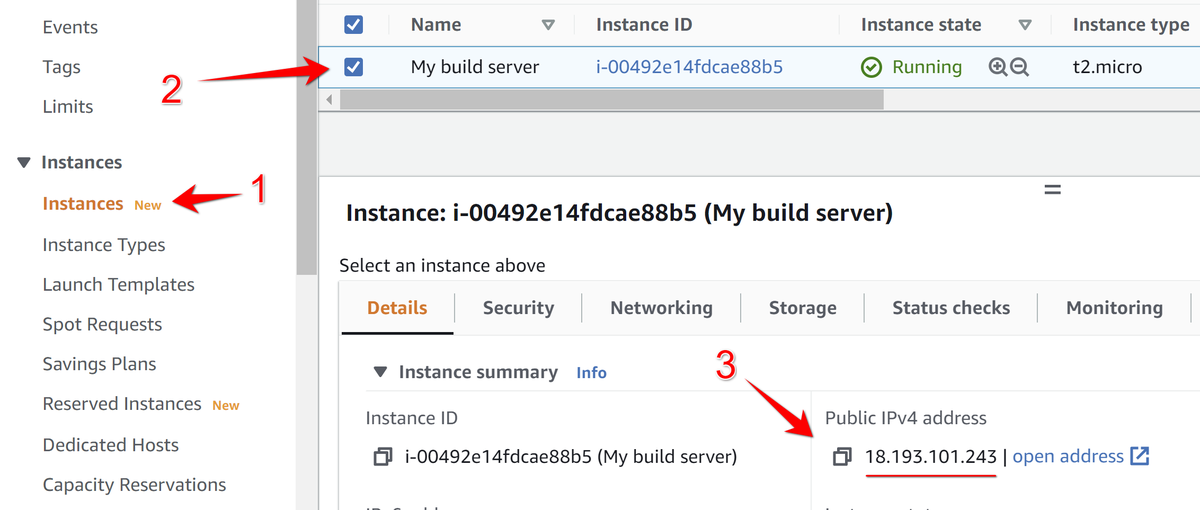
Return to the list of instances and click on instance Details to verify IP address:
Now we have to get a domain for our Woodpecker instance.
Now I recommend you to create a subdomain on your own company/own domain for a build server (with free Let's Encrypt https certificate).
Woodpecker can automatically generates a built-in Let's Encrypt SSL certificate so your WoodpeckerCI will work over https.
For this, you only have to get a domain, such as mycompany.com and then in the DNS setup of your domain just add one A record with a name e.g. build, which will point to the IP of our instance (in my case it is 18.193.101.243). So your Woodpecker Dashboard will be hosted on build.mycompany.com.
For example, I will use build.devforth.io, so I will add DNS record of A type to IP address of my instance (On screenshot above). So I will add this record using DNS dashboard of my domain:
TYPE  NAME                   VALUE
A     build.devforth.io      18.193.101.243
Provision your VPS with Woodpecker
- Using command line, navigate to the directory with a downloaded key my_build_server.pem, move it to home (or another preferred dir) and change permission to the file by running the following commands in a terminal:
mv my_build_server.pem ~/my_build_server.pem
chmod 700 ~/my_build_server.pem
On Linux/MacOS you can use a native terminal emulator, while on Windows 10/11 we recommend using WSL 2 Ubuntu (or at least Git Bash).
2. Connect to EC2 instance with SSH:
ssh -i ~/my_build_server.pem [email protected]Instead of 18.193.101.243, use IP address of your server. Now you should see the Ubuntu prompt in a terminal.
- Now we need to install Docker software. To use latest stable Docker version we recommend commands from official Docker setup guide:
sudo apt update -y && sudo apt install -y ca-certificates curl gnupg lsb-release
curl -fsSL https://download.docker.com/linux/ubuntu/gpg | sudo gpg --dearmor -o /usr/share/keyrings/docker-archive-keyring.gpg
echo \\
  "deb \[arch=\$(dpkg --print-architecture) signed-by=/usr/share/keyrings/docker-archive-keyring.gpg] https\://download.docker.com/linux/ubuntu \\
  \$(lsb\_release -cs) stable" | sudo tee /etc/apt/sources.list.d/docker.list > /dev/null

sudo apt update -y && sudo apt install -y docker-ce docker-ce-cli containerd.io- Install docker-compose:
sudo curl -L "https://github.com/docker/compose/releases/download/1.29.2/docker-compose-$(uname -s)-$(uname -m)" -o /usr/local/bin/docker-compose && sudo chmod +x /usr/local/bin/docker-compose- Clone our Woodpecker CI Docker Compose template and copy .env.sample to .env:
git clone https://github.com/devforth/woodpecker-compose-template.git
cd woodpecker-compose-template/
cp .env.sample .env- Open .env in any CLI editor (e.g. nano .env) and fill all variables:
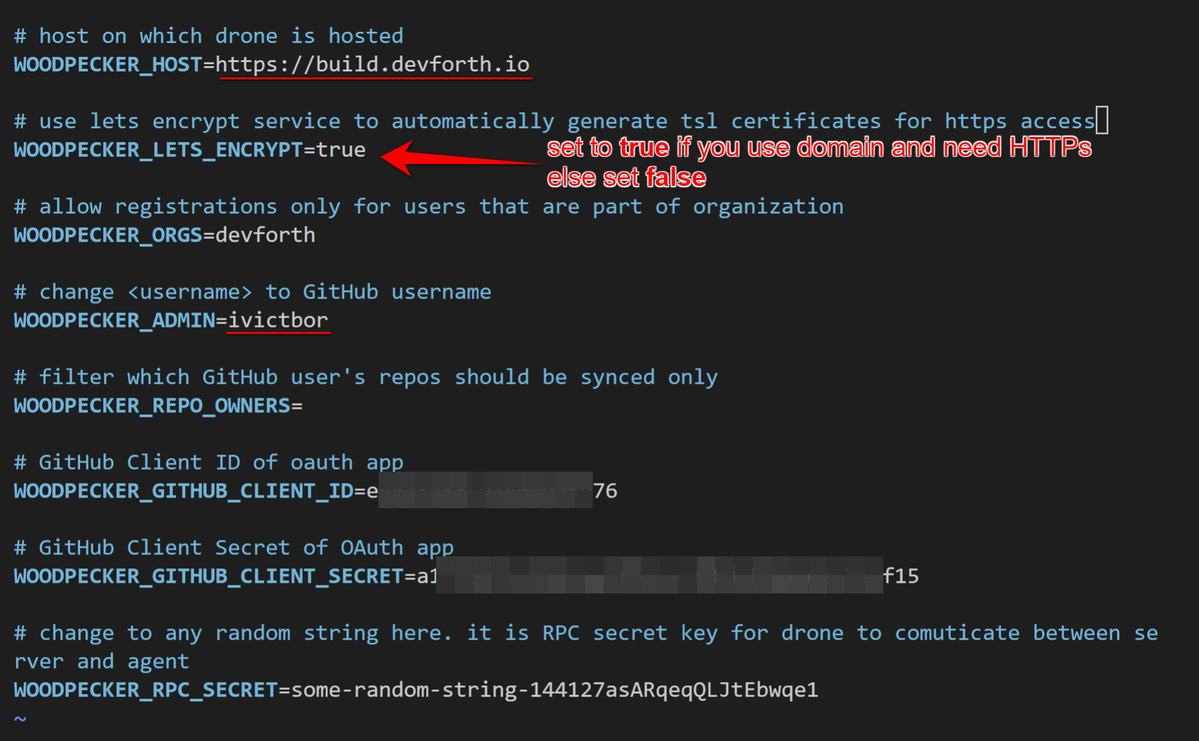
To get WOODPECKER_GITHUB_CLIENT_ID and WOODPECKER_GITHUB_CLIENT_SECRET you need to create GitHub application:
7.1. Go to Developer settings
7.2. Click Register a new application.
7.3. Set Homepage URL to a domain on which Drone will be hosted:
-
If you have a domain it will be: https://build.mycompany.com
-
If you use Amazon public domain it will be something like http://ec2-18-193-101-243.eu-central-1.compute.amazonaws.com (in this case you can only use HTTP scheme in URL)
Set Authorization callback URL to Homepage URL + /login. See an example carefully:
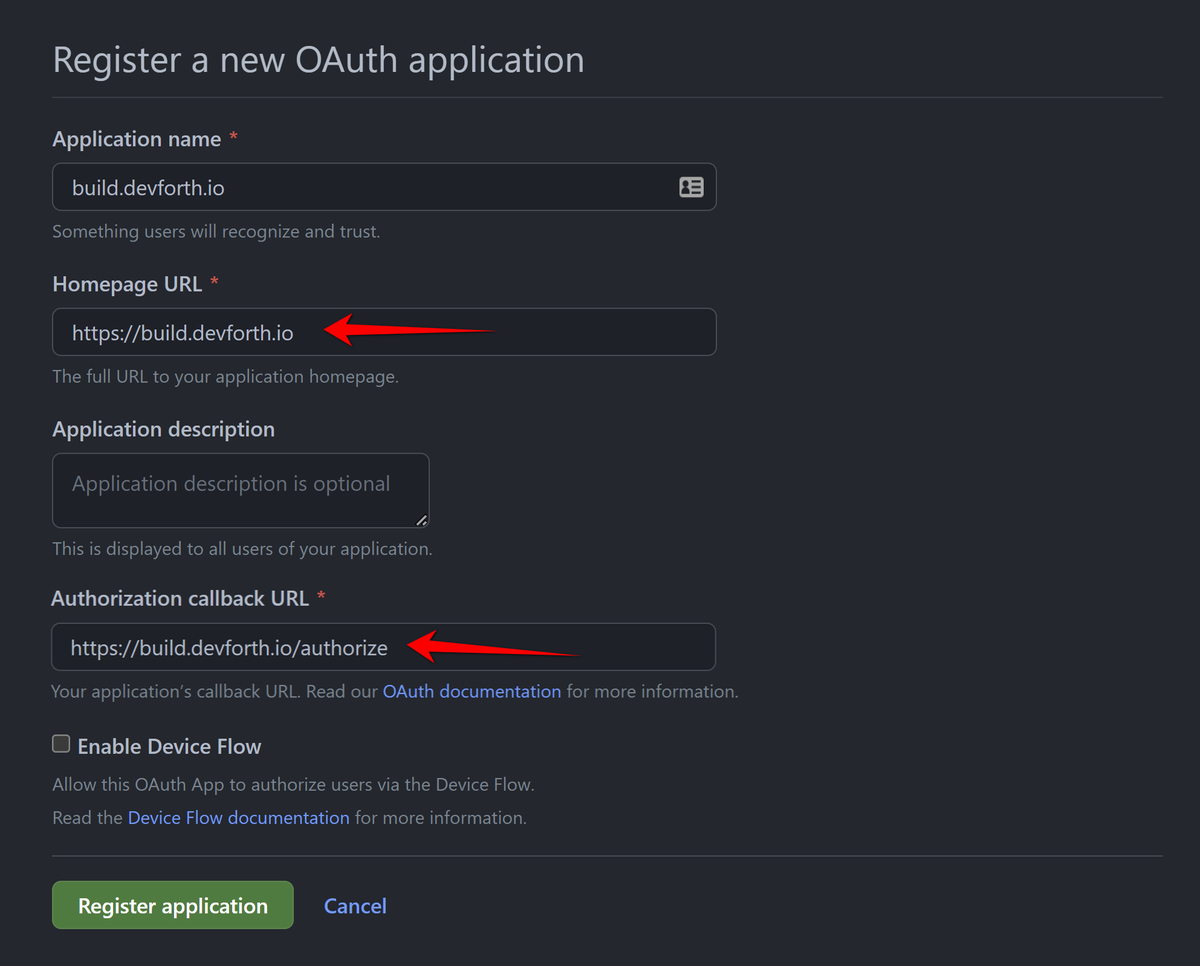
7.4. After you create an application you will see Client ID. Client Secret should be generated with button click. Copy them to your .env file and save them.
8\. Create an account on https://hub.docker.com/ and run
docker loginEnter credentials from signed up user. It will help you to bump DockerHub images pull limit, or pay for Dockerhub if it will be needed. Anyway now you only need to create an account and log in here.
9. Now run:
sudo docker-compose up --build -d --force-recreate After it is finished you should be able to go to your domain, e.g. https://drone.mycompany.com or http://amoazon-dns-domain.
📒 To debug build output you might want to start it without -d flag which detaches containers output
📒 To view logs of Woodpecker web server use sudo docker logs woodpecker-compose-template_woodpecker-server_1
📒 Just in case if you want to stop containers run sudo docker-compose down
- Upon going to https://drone.mycompany.com you should be redirected to GitHub OAuth authorization. After you complete authorization you should see your repositories (it can take some time to sync up with GitHub).
Woodpecker CD/CI minimal project configuration
As an example, I will show you the building of a very simple project with one sh file which does an echo. You can just create a fork into your account from this one.
Go to Woodpecker, click Add repository, then click Reload repositories, find your repo and Activate it by clicking Enable.
If you can't find repository, scroll down to section "How to allow others to add repository to Woodpecker"
Now go to repository settings.
Set Trusted option and save:
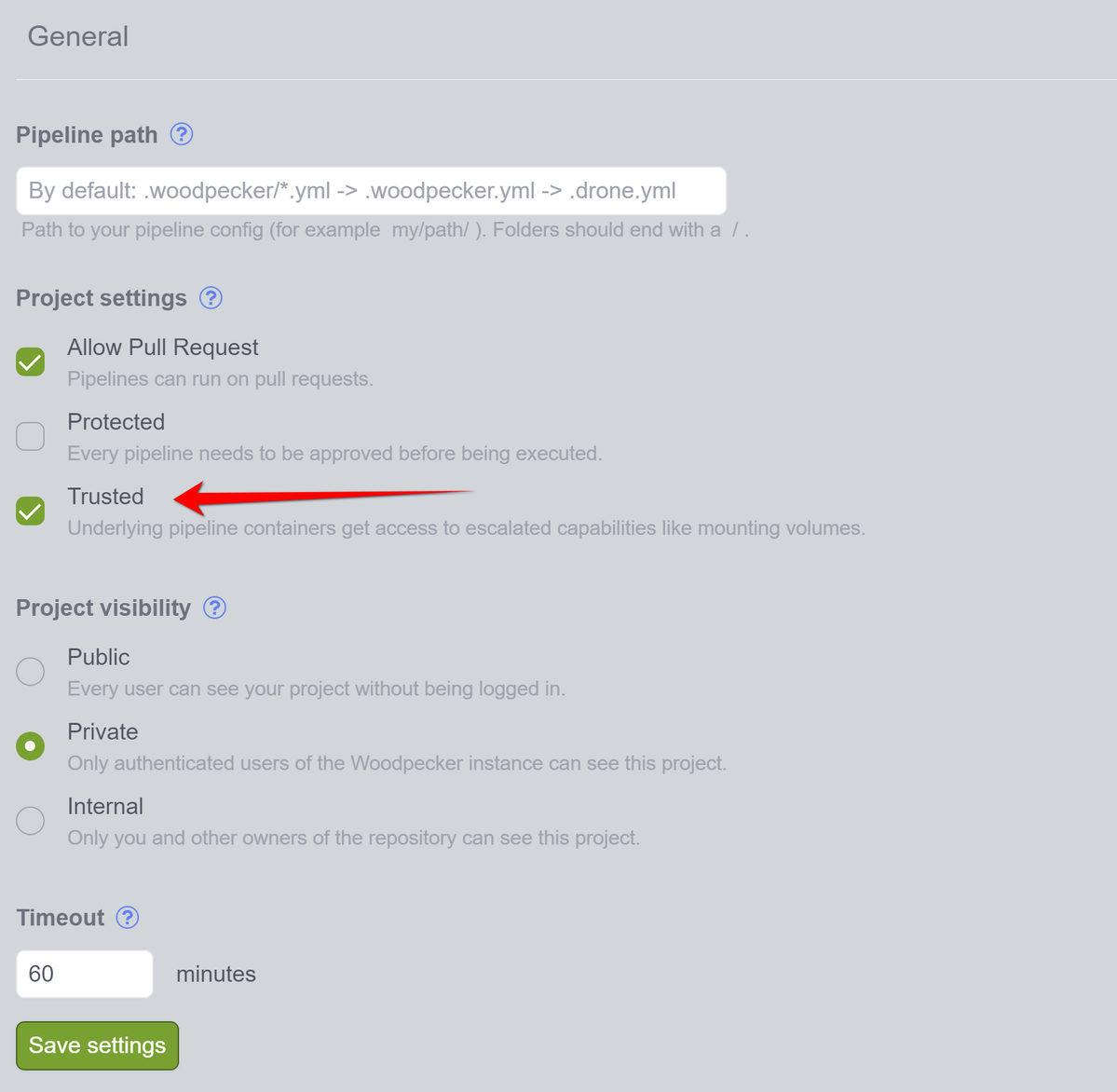
Now in your repo create a configuration file .woodpecker.yml with the following content:
clone:
  git:
    image: woodpeckerci/plugin-git
    settings:
      partial: false
      depth: 5

steps:
  build:
    image: docker
    volumes:
      - /var/run/docker.sock:/var/run/docker.sock
    commands:
      - cd deploy && /bin/sh build.sh
This runs our sh file. Simply push the file and Woodpecker CI will automatically start building your project!
And we are done, you can go to build lock and check output of our target:
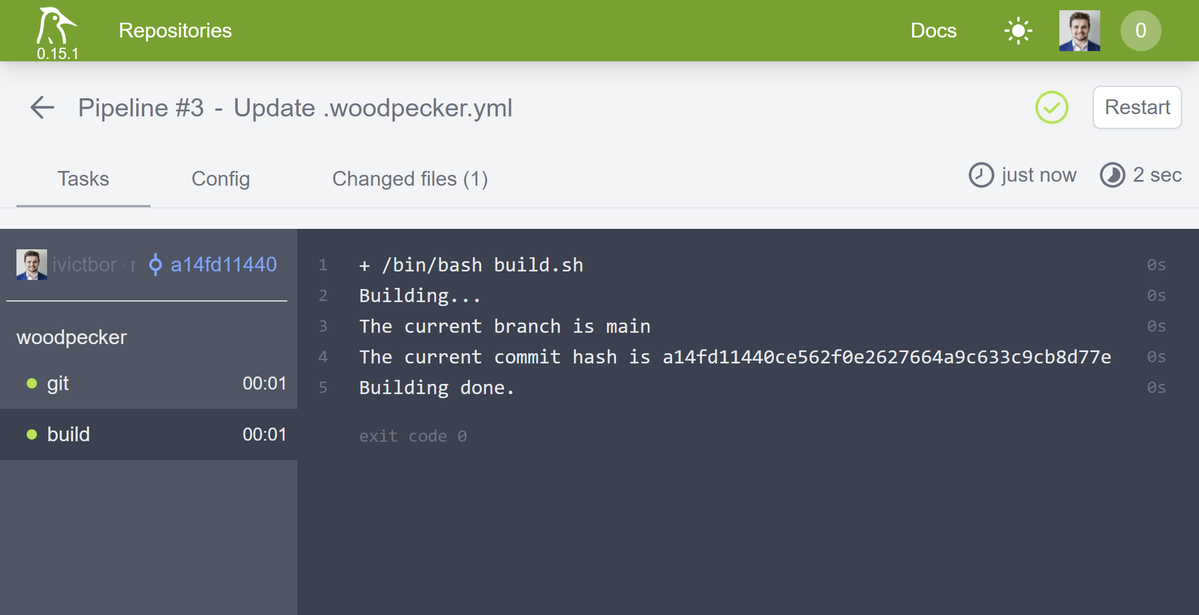
Here we just printed couple of lines and substituted branch and commit SHA environment variables, however you can do any if you need see a complete list of woodpecker environment variables.
Protecting your Woodpecker installation with Cloudflare
Optionally you can also very easily set a Cloudflare on free plan in front of your VPS server. Why:
- To hide your web-server real IP address (Instead Cloudflare will use own). No one will be able to attack / poke your ports.
- Add basic protection layer from DDoS attacks.
- Speed up loading of Woodpecker Dashboard a little bit, because Cloudflare is caching distributed CDN by it's nature
Cloudflare works only if you have your own domain. Just Sign Up to Cloudflare and follow initial site setup guide. This will include repointing NS records of your domain to Cloudflare DNS servers. From this moment all DNS control should be done in Cloudflare. Old DNS server will not be used.
If you are new to Cloudflare, for all your records you can set Proxy status to DNS only. For Woodpecker you can safely set Proxied to activate protection:
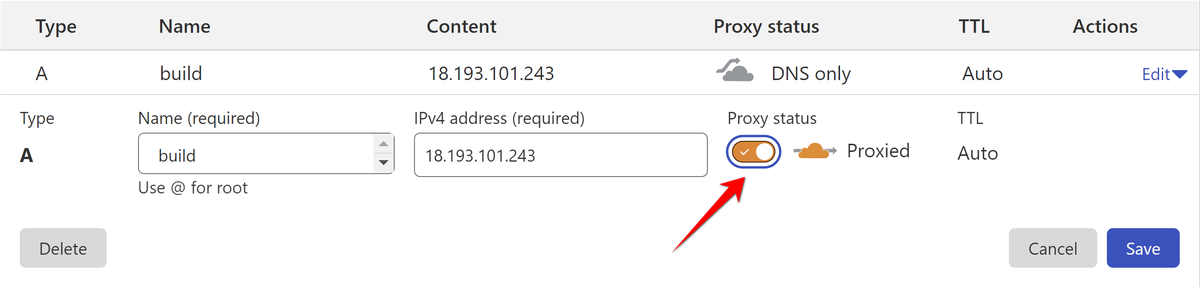
Also we need to set a way Cloudflare connects to your server. For most compatible setup we will explain how to use Flexible mode, which means Cloudflare will use plain HTTP (80) requests to your server:
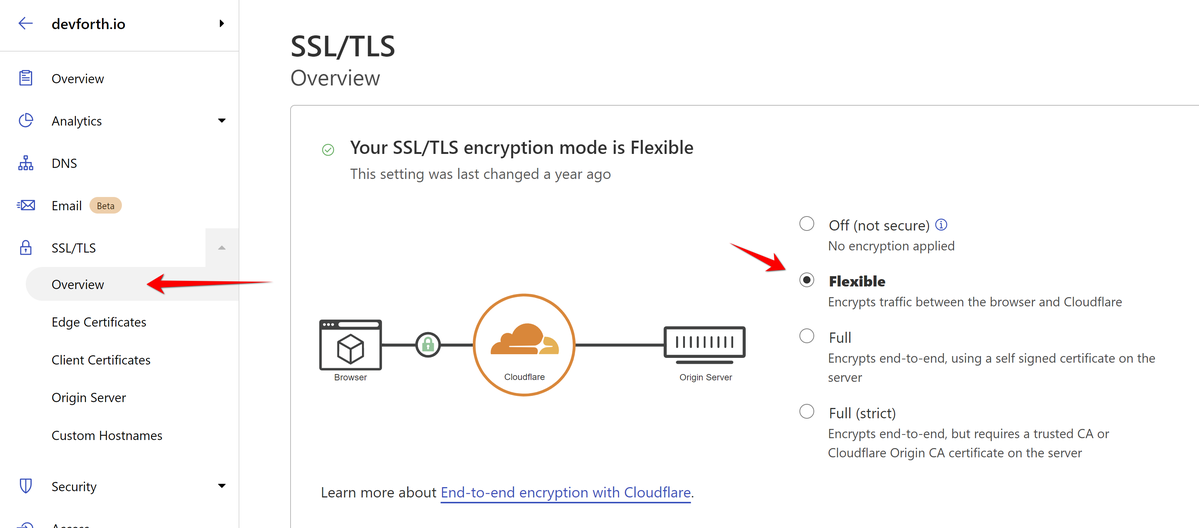
Now it is also very important to set WOODPECKER_LETS_ENCRYPT option to false in .env and restart container with updated .env:
sudo docker-compose up --build -d --force-recreate
If you will not do this, then Woodpecker will always answer to Cloudflare with 301 redirect from HTTP to HTTPs (Cloudflare Flexible Option forces to make HTTP requests). So in the end you might get Infinitive redirects loop (Browser might show it as ERR_TOO_MANY_REDIRECTS).
📒 It takes some time for Proxy status to take affect. Sometime it is slowed down by DNS cache. To easily check whether you are under cloudflare or not, check HTTPS SSL Certificate Issuer: if it is CN=R3 O=Let's Encrypt then certificate is served from your server and you are not under Cloudflare
🛡️ For best level of protection you should never expose your IP address to anyone (in my case 18.193.101.243). I did it here only for content-writing purposes and will destroy server before post will be publishedAlso you should keep Cloudflare proxied status forever, because once you will disable it, your IP address will go to DNS servers list
How to allow others to add repository to Woodpecker
Person configured in WOODPECKER_ADMINS option can add repositories by default. What if you want to allow your teammates to add some repositories to CI?
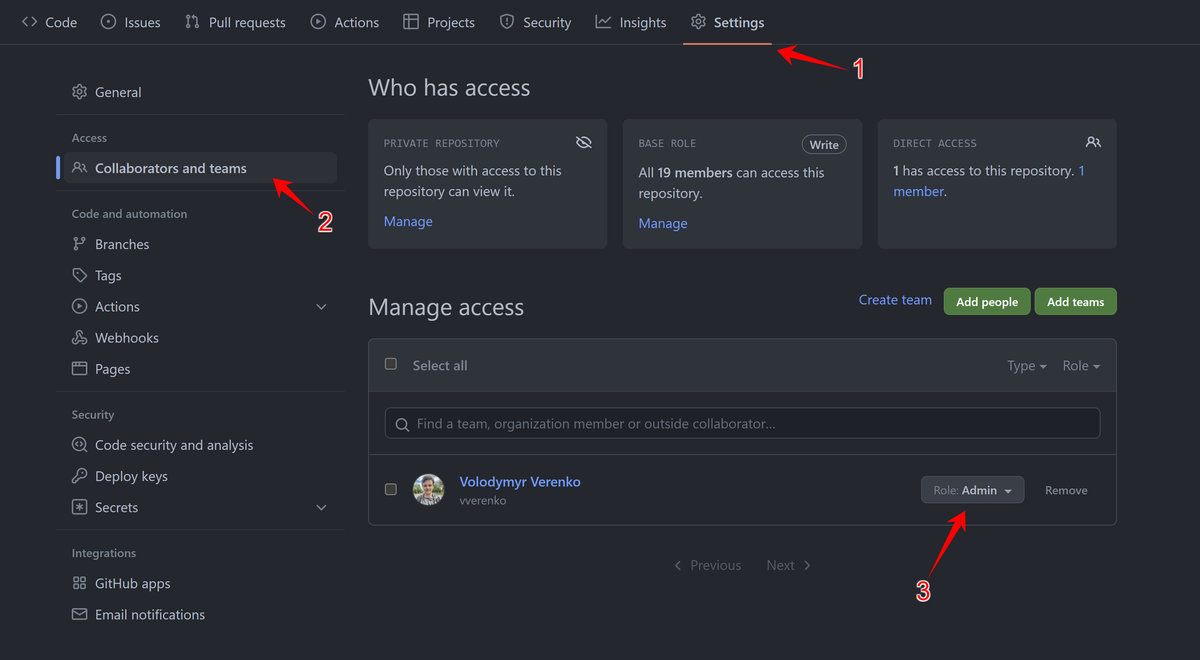
First of all you need to make sure that person who will add a repository has an Admin role in repository settings on GitHub:
Then user should go to Woodpecker, click Add repository button (top right corner), then click Reload repositories, wait, then find repository which has your project and click Enable. Then you need to create .woodpecker.yml file, example could be found this the hint: How to create automatic docker-compose-based deploy pipeline
☝🏼 In same way GitHub Admin role allows users to change secrets. So if a new member needs to make changes in project Secrets or other Woodpecker configuration, then you have to give him Admin role inside of GitHub repository settings and tell him to click Reload repositories
Slack Integration into your build flow
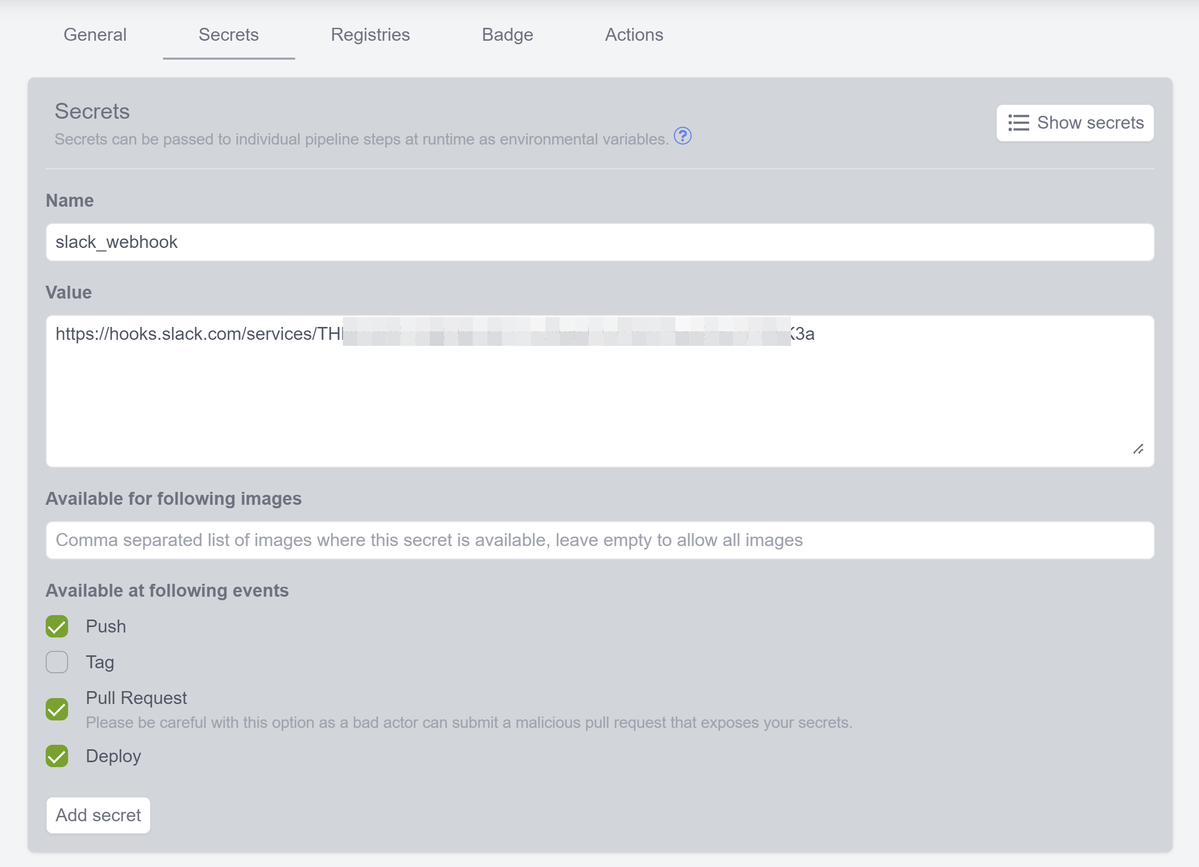
First, we have to add a webhook to the desired channel so Woodpecker can send messages to it: simply visit https://app.slack.com/services/new/incoming-webhook, choose your workspace in the top right corner, select desired channel and click on Add. Copy webhook URL.
Slack webhook is a sensitive value because it can be used to post into a Slack channel. That's why it has to be stored inside of Woodpecker and not in the repository source code, as it minimizes the number of people who can access it. In Woodpecker these sensitive variables are called Secrets. Go to project settings and add slack_webhook:
Now you need to add a step after the build step to .woodpecker.yml, so whole file looks like this:
clone:
  git:
    image: woodpeckerci/plugin-git
    settings:
      partial: false
      depth: 5
pipeline: build: image: devforth/drone-builder volumes: - /var/run/docker.sock:/var/run/docker.sock commands: - /bin/bash build.sh slack-after-build: image: plugins/slack secrets: - slack_webhook webhook: $SLACK_WEBHOOK username: Woodpecker CI icon_url: ${CI_COMMIT_AUTHOR_AVATAR} template: > {{repo.name}}/{{build.branch}} - #{{build.number}} {{uppercasefirst build.status}} after {{since build.started}} (<{{build.link}}|Open>) when: status: - success - failure
And push change. You will see a note after build is done:

As you can see to use Secret you just have to specify from_secret: <secret name>. This works for all values inside of .woodpecker.yml.
You can customeize your message using template parameters. For more parameters and template references visit the plugin documentation page.
After the build, you should see a message in the desired channel.
If you want to receive a message at the start of build, you can also add a similar step before build.